We’ve shipped two updates that work at opposite ends of the planning spectrum — one for zooming out across every client project at once, and one for zooming in on what you actually got done today.
🔄 “Schedule” is now “Planner”
We’ve renamed the Schedule menu to Planner. The menu includes your Daily Planner, Weekly Planner, Weekly Calendar, Monthly Calendar — and now the Workspace timeline — so “Planner” is the more accurate name for what’s inside.
📅 Workspace timeline
You’ve always been able to see tasks across projects in Upbase using the Weekly planner, Weekly calendar, or Monthly calendar. But none of those group by project — and none of them handle tasks that span multiple days well.
The new Workspace timeline does both. It puts every task with a due date — across every project in your workspace — onto a single timeline, grouped by project, so you can track progress per client at a glance and see multi-day tasks as continuous bars.
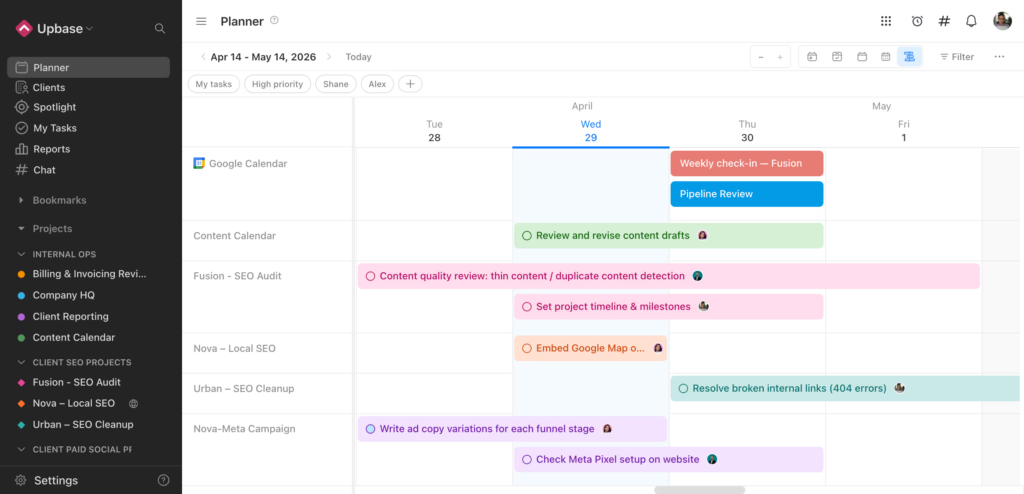
You’ll find it in the Planner menu in the top sidebar. By default, it shows a rolling 30-day window centered on today: the past 15 days behind you, the next 15 days ahead. Use the prev/next buttons to slide further out in either direction.
We built a free resource board with the best tools, templates, and guides for running a small agency. No signup required.
Browse the Agency Resource Hub →A few things worth knowing:
- Tasks are grouped by project, with each project’s color bar making it easy to spot which client a task belongs to at a glance.
- Drag a task bar horizontally to reschedule. Drag it vertically into another project’s row to move the task to that project — a fast way to reorganize work without opening the task panel.
- Performance is capped to a 30-day window on purpose. A wider view across hundreds of tasks gets noisy fast, and 15 days behind plus 15 days ahead matches how most agency work actually gets planned.
✅ Daily review
The Daily Planner has always been about planning your day. Now it shows you what actually happened.
Click the day’s summary in the Daily Planner header — the small line showing your completed tasks and tracked time — and the new Daily review panel slides open.
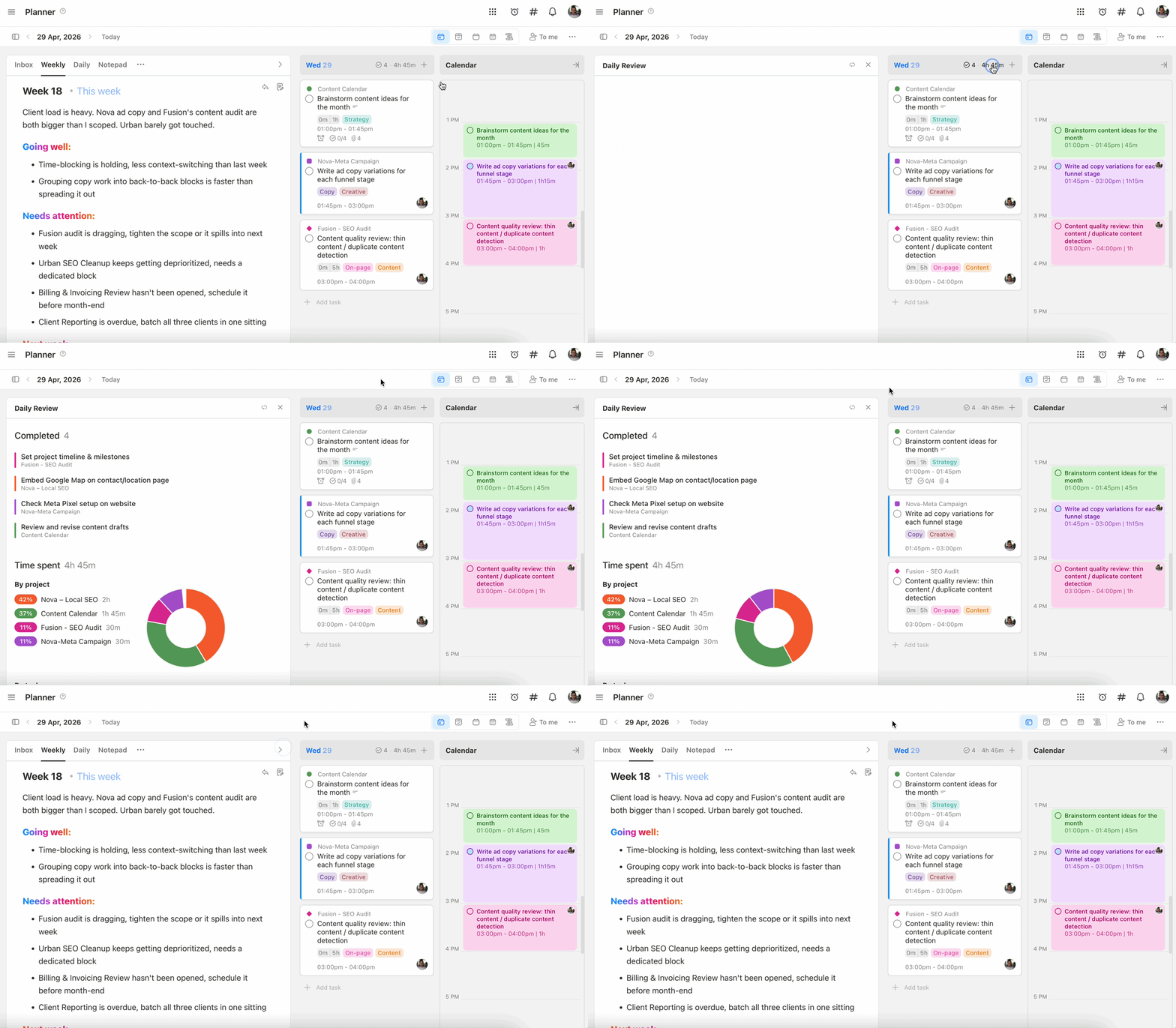
It has two sections:
Completed — every task you marked done that day, across all projects, with each project’s color bar so you can see where your effort went. Click any task to jump straight into it.
Time spent — your total tracked time for the day, broken down as a donut chart by project, with a per-task list underneath showing exactly where each minute went.
Why we built it:
The plan/do/review loop is core to how good days happen. Upbase already had the plan part (Daily Planner) and the do part (Time Tracker, completing tasks). The review part was scattered — you had to dig through reports or check tracked time and completed tasks separately.
Daily review puts both in one place, one click from where you already are.
A few things worth knowing:
- The panel shows your own completed tasks and tracked time only. Workspace-wide views still live in the Reports menu.
- Tasks count as “completed that day” based on when they were marked done, not when they were due.
- Time entries roll up by project automatically, no setup needed.
P.S. Not seeing the updates? Do a hard refresh to make sure you’re on the latest version.
Thanks for being part of the Upbase journey! 🚀
Recent updates
- 7 updates to make working with tasks faster June 8, 2026
- 🎉 New in Upbase: Bookmarks, Notes, and Recents — now one keystroke away from anywhere May 28, 2026
- 🎉 New in Upbase: Rename and reorder modules, resizable sidebar, and description templates May 21, 2026
- 🎉 New in Upbase: Retainer billing and the Profitability Report April 22, 2026
- 🎉 New in Upbase: Profit Tracking and a smarter way to log time March 25, 2026