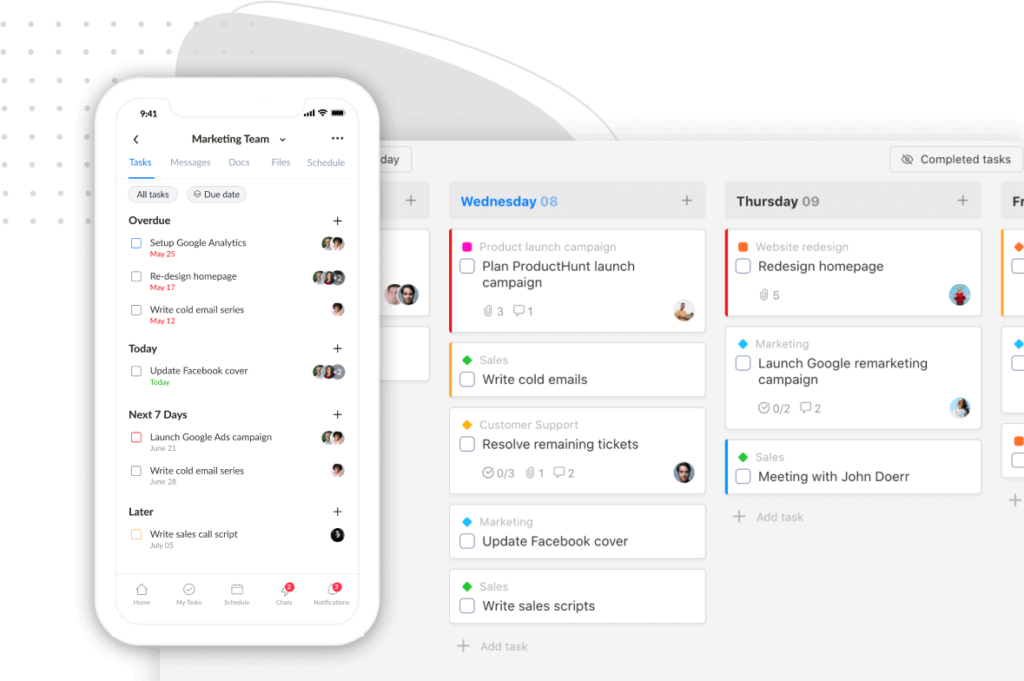
We’re excited to share three new updates in Upbase, designed to make your workspace fit the way you actually work. Let’s dive in!
🧩 Rename and reorder modules per project
Every project in Upbase comes with the same set of modules in the top bar: Tasks, Planner, Docs, Files, Links, Messages, Chat, Profit. That works for most client projects — but not all projects look the same.
A project for collecting ideas doesn’t really have “Tasks.” A project for internal ops might not need “Profit.” And a project where Docs is the main artifact probably shouldn’t bury it behind Tasks and Planner.
You’ve always been able to show or hide modules per project. Now you can also rename and reorder them, so each project’s top bar reflects what’s actually inside it.
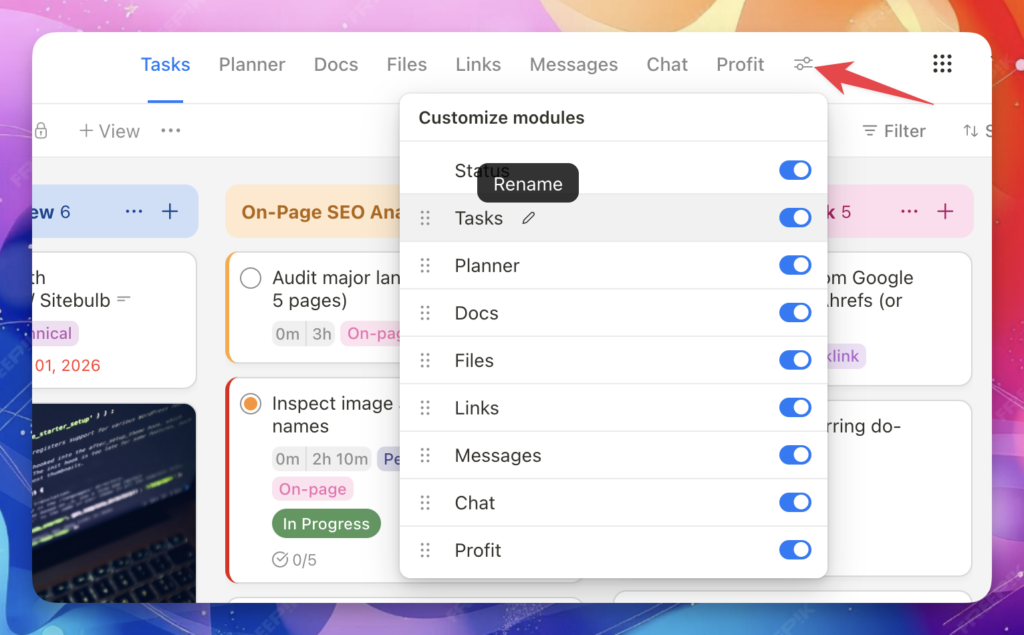
Click the toggle icon at the right end of the module bar to open the Customize modules popup. From there you can:
We built a free resource board with the best tools, templates, and guides for running a small agency. No signup required.
Browse the Agency Resource Hub →- Rename any module by hovering and clicking the pencil icon (e.g., “Tasks” → “Ideas” for an idea collection project)
- Reorder modules by dragging the handle on the left
- Show or hide modules with the toggles on the right (this one’s not new, but it lives in the same place now)
A few things worth knowing:
- Changes apply project-wide. If you rename “Tasks” to “Ideas” in your idea collection project, every member of that project sees “Ideas.”
- Settings are per-project, not workspace-wide. Your client delivery project can keep the defaults while your idea collection project gets its own setup.
↔️ Resizable left sidebar
The main left sidebar is now draggable. Pull the edge out to give long project names more room, or shrink it down to free up screen space for the board, timeline, or calendar.
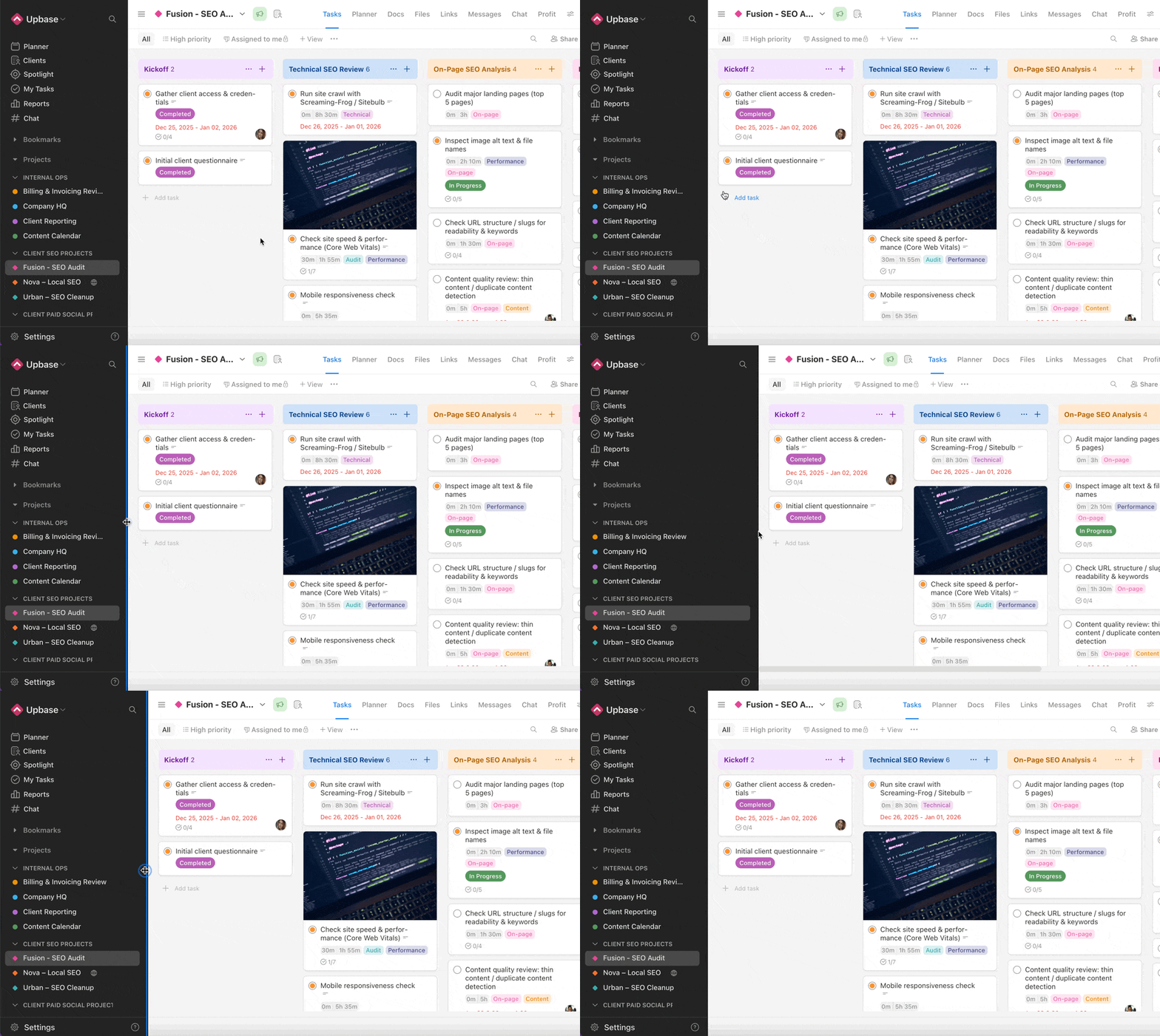
Unlike module customization, sidebar width is personal — your setting saves for you only, so resizing won’t affect anyone else on your team.
⚡ Task description templates
If you write the same kind of task description over and over — bug reports, client briefs, content specs, meeting notes — you can now save them as templates and drop them into any task in two keystrokes.
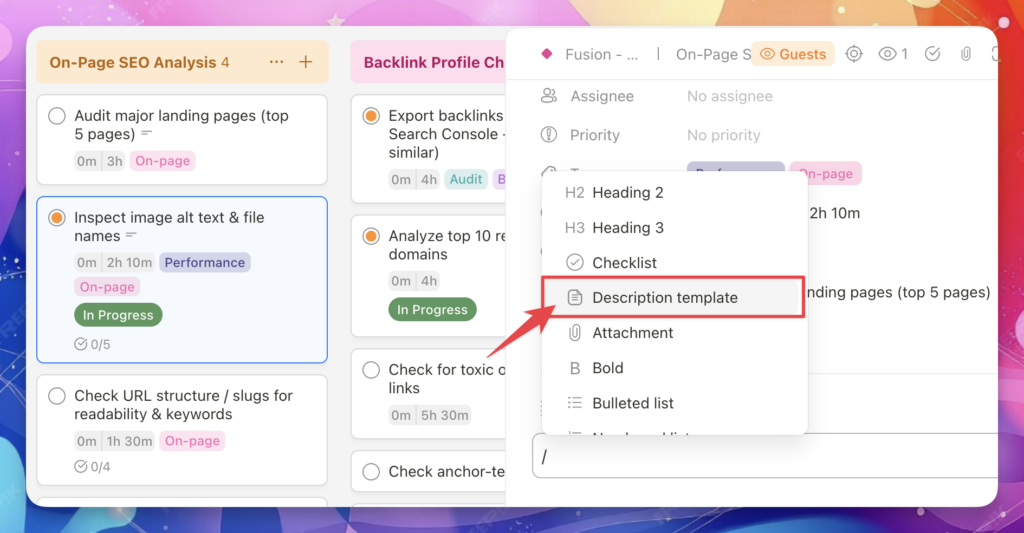
How it works:
- Open any task, click into the description, and type
/ - Pick Description template from the slash menu
- Choose a template — or create a new one on the spot
Templates are private to each member, so everyone on your team can build their own library. A designer’s bug report template doesn’t have to look like a PM’s brief template.
Why we built it:
Most agency work is repetitive at the task level. The same brief structure. The same QA checklist. The same questions you ask a client every time. Retyping that — or copy-pasting from a doc you have to go hunt for — is friction that adds up across a week. Description templates make that one keystroke.
P.S. Not seeing the updates? Do a hard refresh to make sure you’re on the latest version.
Thanks for being part of the Upbase journey! 🚀