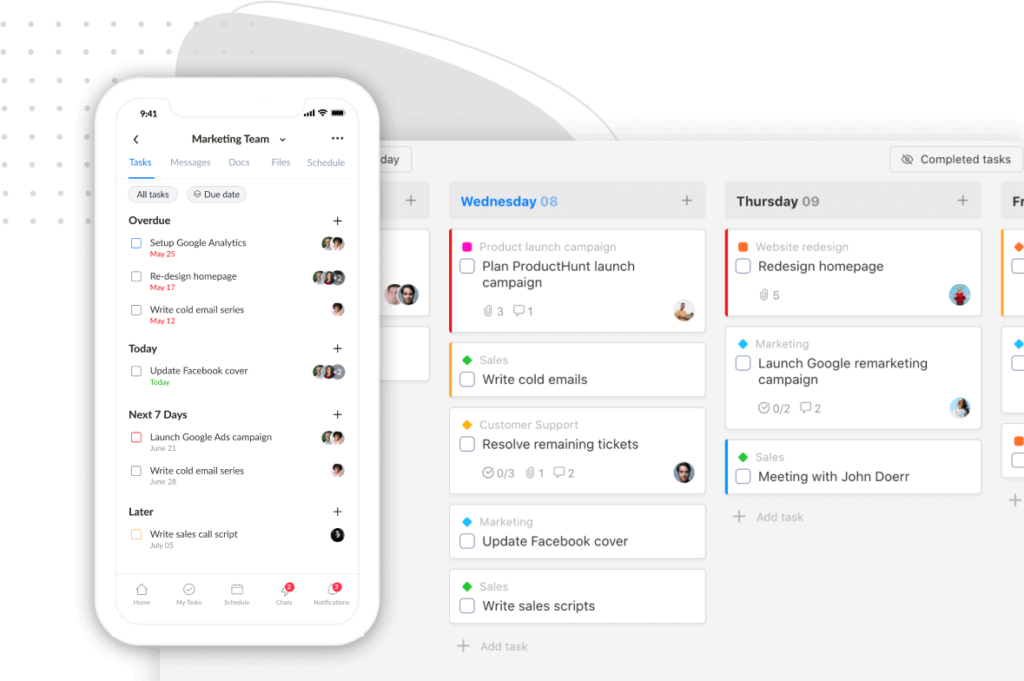
We’re excited to share several updates that make working with tasks in Upbase faster, especially when you have a lot of them. Let’s dive in.
Right-click on any task
You can now right-click any task to open its menu, instead of clicking the More button. The menu opens right at your cursor.
This works in every view: Project list/board, Daily planner, Weekly planner, My tasks, Spotlight, Filter pages, and Tag pages.

Bulk edit tasks
You can now select multiple tasks and edit them at once.
Three ways to enter bulk editing mode:
We built a free resource board with the best tools, templates, and guides for running a small agency. No signup required.
Browse the Agency Resource Hub →- Hold Shift and click a task
- Click the More button on a task and select “Select multiple”
- Right-click a task and select “Select multiple”

Once you’re in bulk editing mode:
- Click other tasks to add them one by one
- Hold Shift and click a task to select a range
On Board view and Weekly planner, you can drag all selected tasks into a new column at once.

Show subtasks on the board and task list
You can now expand any task to see its subtasks right inside the board or list. No need to open the task to check what’s inside.

A couple of related shortcuts:
- Right-click any task and select “Add subtask” to quickly add a subtask
- In list view, click the right arrow button on the left of any task to add a subtask in place

Full-page notifications layout
If you get a lot of notifications, the popup view can be slow to browse. You open one, close it, open the next, and so on.
We added a full-page notifications layout. The notification list sits on the left, and the related item (task, doc, file) opens in the right column. You can click through your notifications without leaving the page.
You can switch between popup and full-page anytime. Upbase remembers your last choice and opens that view next time.

Reorder subtasks from the sidebar
You can now drag and drop to reorder subtasks directly in the subtask sidebar.

Auto theme
We added an Auto option in the theme settings, alongside Light and Dark. Auto follows your system theme, so Upbase switches automatically when your OS does.

Reorder items in the bottom Tray
You can now drag and drop to reorder items in the bottom Tray.

That’s it for this release. As always, let us know what you think.
Recent updates
- 🎉 New in Upbase: Bookmarks, Notes, and Recents — now one keystroke away from anywhere May 28, 2026
- 🎉 New in Upbase: Rename and reorder modules, resizable sidebar, and description templates May 21, 2026
- 🎉 New in Upbase: Workspace timeline and Daily review May 5, 2026
- 🎉 New in Upbase: Retainer billing and the Profitability Report April 22, 2026
- 🎉 New in Upbase: Profit Tracking and a smarter way to log time March 25, 2026