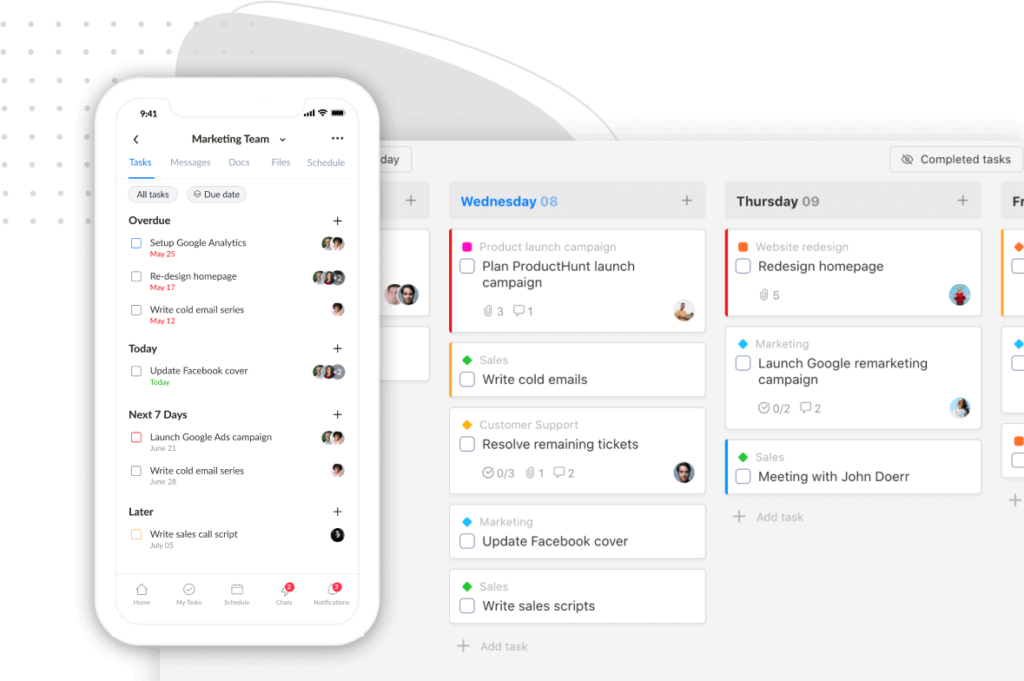
We’ve shipped two major updates — one for agency owners who need to know if their projects are actually making money, and one that makes logging time faster from anywhere in the app.
New: Agency Resource Hub – A free resource library built for small agencies — tools, templates, playbooks, and curated guides to help you run a more profitable, organized agency. No fluff, no paywalls. Check it out →
💰 Profit Tracking
Upbase now shows you revenue, labor costs, and profit in real time — per project, per client, and across your whole workspace.
Set up your team’s billable and cost rates once in Settings → Members, then open the Profit tab on any project to get started.
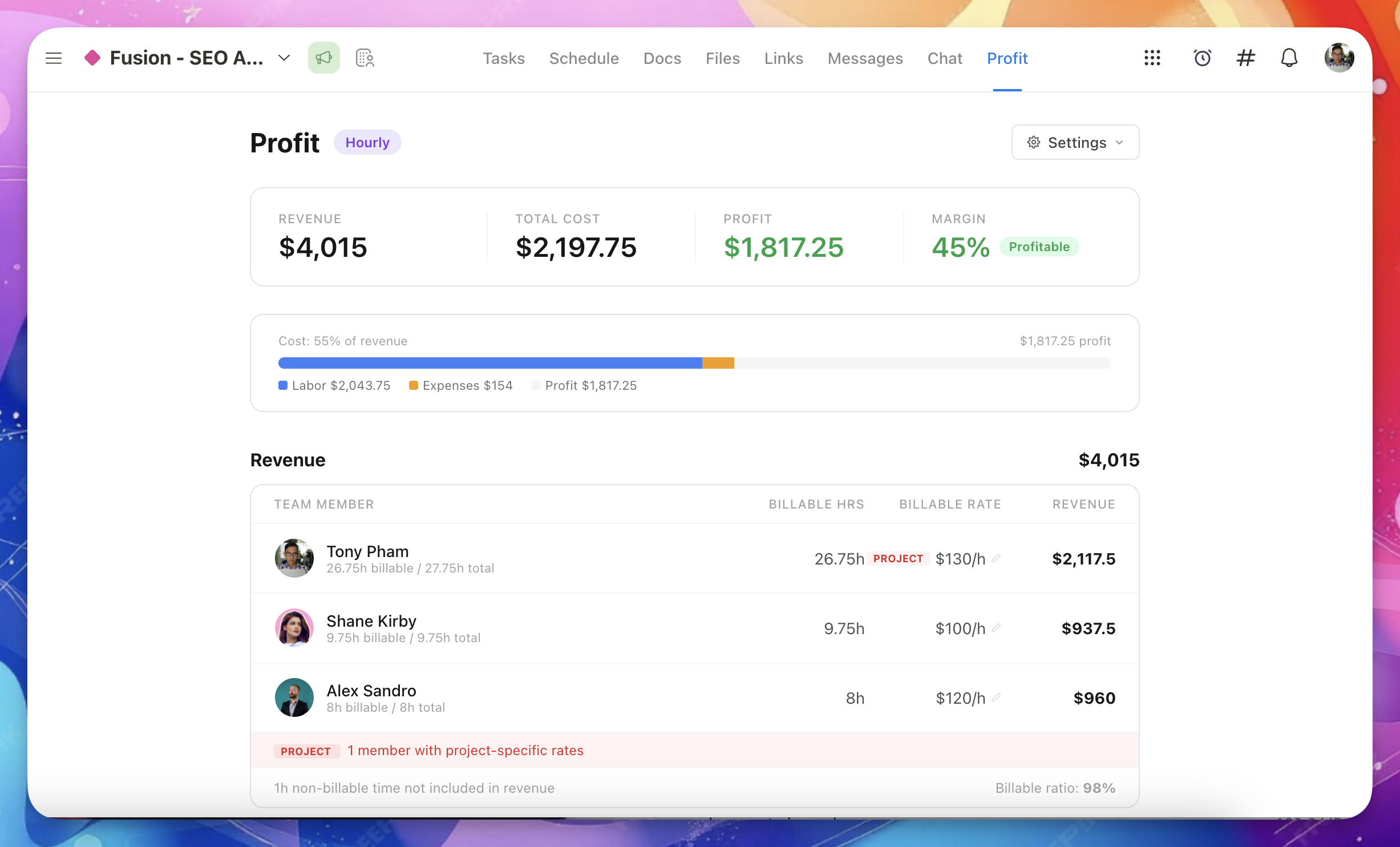
Three billing types available now, with one more coming next week:
We built a free resource board with the best tools, templates, and guides for running a small agency. No signup required.
Browse the Agency Resource Hub →- Fixed Fee — enter a project fee, and Upbase tracks how costs eat into it
- Hourly — revenue calculates automatically from logged hours × billable rates
- Non-billable — for internal work. Tracks costs only, no revenue
- Retainer (coming next week) — recurring monthly fee with included hours, billing cycles, and rollover settings
Client-level profitability rolls up all projects for a client into one view, so you can see at a glance whether a client relationship is worth it overall — or spot a month where things started going sideways.
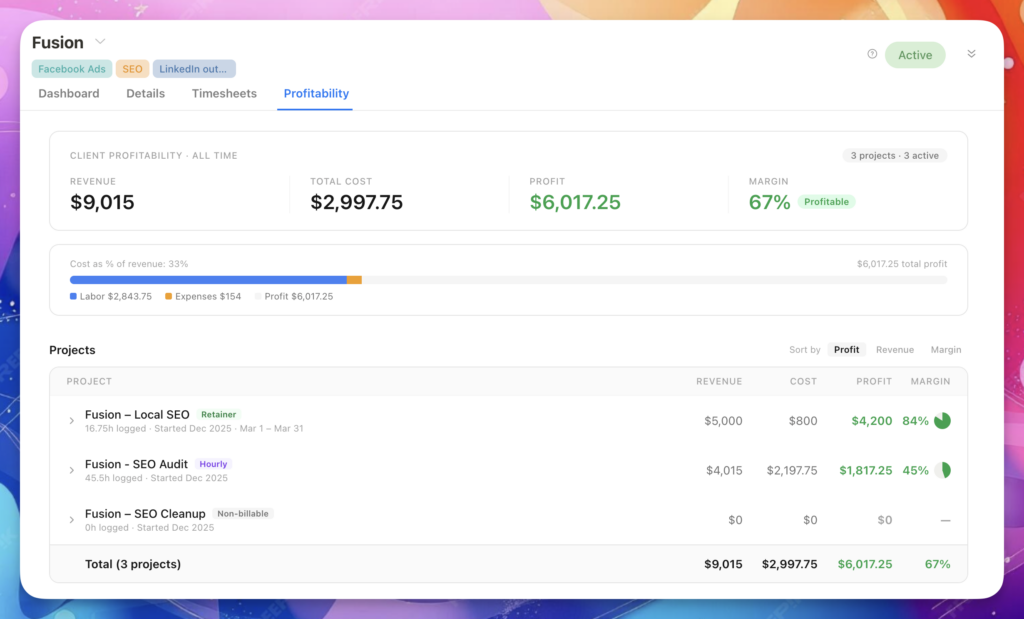
The workspace Profitability Report (coming next week) will give you a monthly view across every project and client, with comparison mode, filters by client or billing type, and a group-by-client option.
A few things worth knowing:
- Only workspace owners and admins can see the Profit tab. Team members and guests cannot.
- Rate changes are forward-only. Past time entries keep their original rates.
- Time entries only count for profit calculations if they were logged while the task was inside a project.
⏱ Time Tracker button in the topbar
There’s now a clock icon in the topbar — click it to log time from anywhere in Upbase without navigating into a specific project or task.

Timer mode — search for a task, hit play. That’s it. The timer runs in the background while you work.
Manual mode — select a task, enter a duration (supports formats like 1h30m, 1:30, or 15 for minutes), set the date, add a note, and toggle billable on or off. Save entry.
Bulk add — inside Manual mode, there’s a “Bulk add time entries” option that opens a full weekly matrix. Useful for anyone doing their timesheet catch-up at the end of the week — log multiple tasks across multiple days in one go.
Recent entries show up below both modes so you can see what you logged today and pick up where you left off.
P.S. Not seeing the updates? Do a hard refresh to make sure you’re on the latest version.